GM Controls
The GM's session screen: every location in play, the controls for characters, NPCs and monsters, searchable objects, fog and the log.
- For the GM
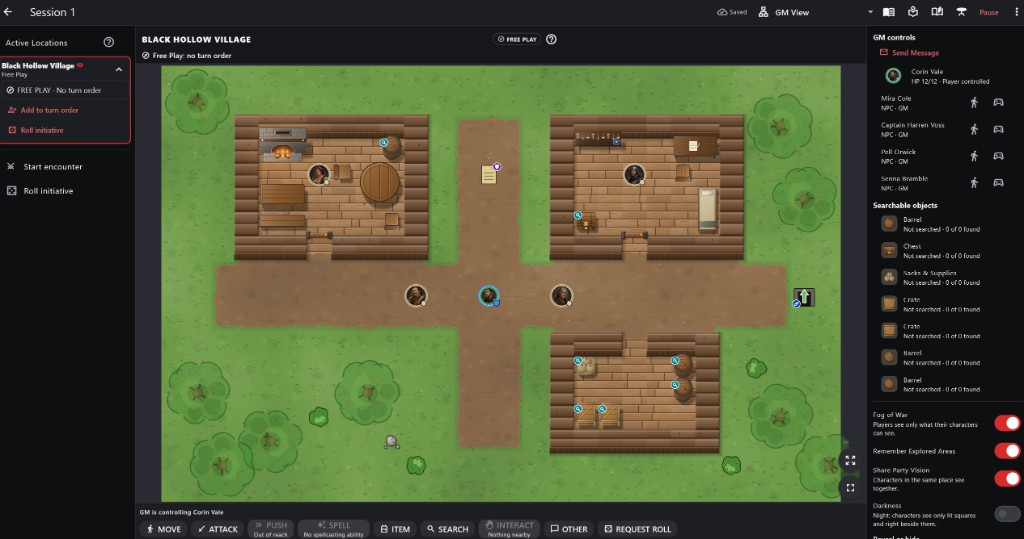
- 1Active Locations Each location in play, its mode, turn order and Start encounter.
- 2Free Play or Combat The location shown and its current mode.
- 3The map Tokens, objects and exits in the location shown.
- 4Action buttons Act for the character you are controlling, or Request Roll.
- 5GM controls Send Message, and who controls each character and NPC.
- 6Searchable objects What can be searched here and what was found.
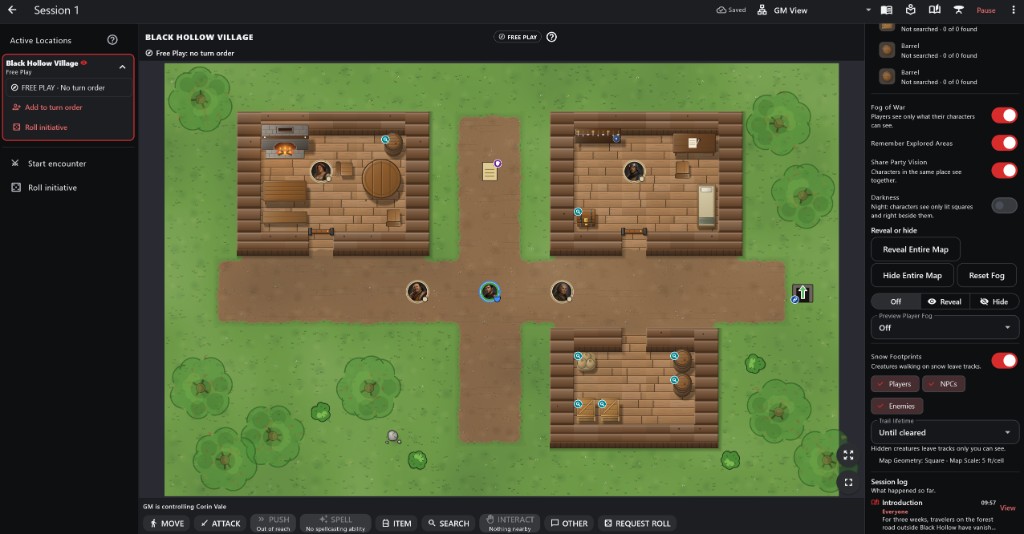
- 1Fog of War Fog, Remember Explored Areas, Share Party Vision and Darkness.
- 2Reveal or hide Reveal Entire Map, Hide Entire Map, Reset Fog, and a brush to reveal or hide by hand.
- 3Preview Player Fog See the map exactly as one player does.
- 4Snow Footprints Who leaves tracks, and for how long.
- 5Session log What happened so far, and who saw it.
How to use it
- Active Locations (left) has a card for every place with characters in it, with Start encounter and Roll initiative below.
- GM controls (right) has Send Message, the party, the NPCs and monsters here, and the searchable objects.
- The action bar at the bottom acts for whoever you are controlling, with REQUEST ROLL added.
- On a phone these are in the GM sheet and the sidebar.
Step by step
- Tap a location name to show its map.
- Tap a character in GM controls for Set HP, Move to Location, Place on map, Request roll, Set money and control options.
- Use the walk button beside an NPC to move it.
- Answer anything listed under Pending.
Active Locations For the GM
- Each card shows who it is waiting on, anything pending, or FREE PLAY.
- Tap a location name to show its map. Use the arrow to expand or collapse a card.
- Every location advances on its own; Next Turn on a card moves only that location on.
Controlling Characters, NPCs and Monsters For the GM
- Players control only their own characters. Every NPC and monster is yours.
- Act as ... now lets you act for someone out of turn. Take control is for an absent player; Return to their player gives it back.
- The control button on an NPC or monster can lend it to a player until you take it back.
- The eye button hides or reveals a monster.
Moving Characters Manually For the GM
- Place on map, then tap any open space. Movement is not spent.
- Move to Location sends a character elsewhere; their player's view follows at once.
- When a space is out of reach, the move panel offers Allow Movement.
Changing HP For the GM
- Tap a character or monster in GM controls and choose Set HP.
- The change is recorded as a GM override.
Resolving Other Actions For the GM
- Other actions and Talk appear under Pending with the player's words.
- Accept, Reject, or Request roll.
Searchable Objects For the GM
- Searchable objects lists everything on this map that can be searched and how much has been found.
- A failed search can be overridden with Reveal Anyway.
Sending Messages For the GM
- Send Message writes to everyone, the party at this location, or one player.
- Messages appear on the players' screens and stay in the Session log.
Separate Locations For the GM
- Characters can be in different locations at once; each has its own turn order or Free Play.
- Locations that need you are marked Waiting for GM.
Private Information
- GM notes, hidden monsters, hidden traps, secret doors and spawn markers never appear in a player's view.
- Private discoveries and messages to one player reach only that player; the others learn only that something was found.
- A player only receives what their character is allowed to know.
- Switch the view menu to a player to check exactly what they see.
Footprints in Snow Advanced For the GM
- Creatures walking on snow leave tracks that follow their path. Flying and swimming leave none.
- Hidden creatures leave tracks only you see; players just see "Tracks".
- Snow Footprints in the GM panel turns them on or off for players, NPCs and enemies and sets how long they last.
Important rules
- The GM can act for anyone at any time; turn limits apply only to players.
- Overrides are always available and always recorded.
Common questions
A player left. Can their character keep playing?
Yes: Take control, play them yourself, then Return to their player.