Maps & Map Maker
The Map Maker draws the grid maps play happens on: floors, walls, doors, furniture, trees, traps, and invisible rules such as water depth.
- For the GM
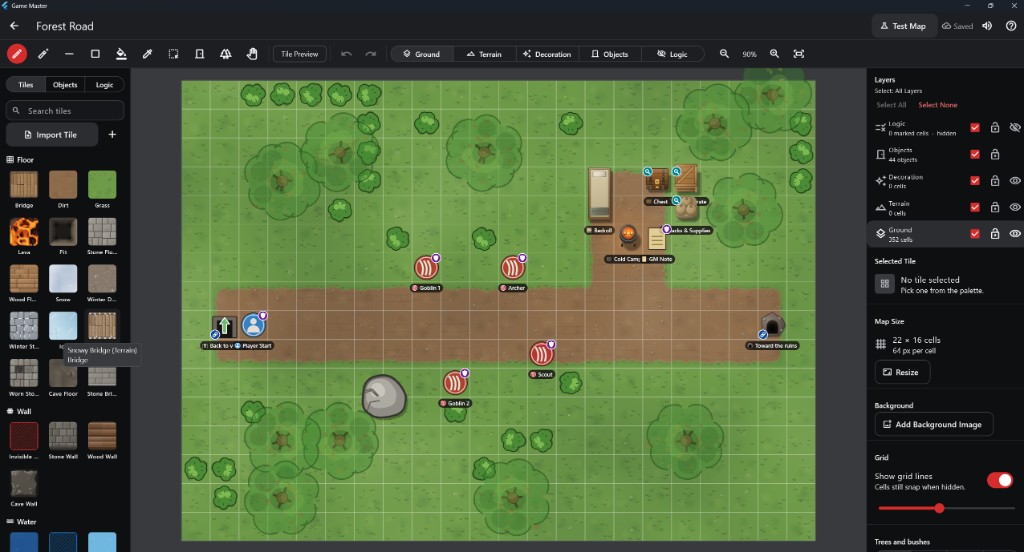
- 1Palette: Tiles, Objects, Logic Pick what to draw. Search, or import your own tiles.
- 2Editing tools Draw, shapes, fill, select, erase and pan, plus Tile Preview, Undo and Redo.
- 3Layer bar Ground, Terrain, Decoration, Objects or Logic: you draw on the chosen layer.
- 4The map Click or drag to draw. Markers show starts, monsters and exits.
- 5Layers and map settings Show, lock or hide layers; the selected tile, Map Size, Background and Grid.
- 6Test Map Walk the map as a player before a session.
Important: Tools act on the selected layer
The eraser, fill and selection work on the layer chosen in the layer bar. Ground + Eraser erases ground; Objects + Eraser erases objects and walls. Nothing on other layers is touched.
How to use it
- Open Maps, pick a map and open it in the Map Maker.
- Choose a layer in the layer bar at the top: Ground, Terrain, Decoration, Objects or Logic.
- Pick a tile, object or Logic mark from the palette on the left (Tiles, Objects, Logic), then a tool, and draw on the map.
- The panel on the right shows the layers, the selected tile or object, Map Size, Background and Grid.
Step by step
- Paint the floor: Ground layer, a floor tile, the pencil or fill.
- Add walls from the Wall section of the Tiles palette.
- Place doors, furniture, chests and stairs from Objects.
- Mark anything the art doesn't show (water depth, indoor areas) on Logic.
- Tap Test Map to try it before a session.
Layers
- Ground: floors such as grass, dirt, stone, wood and water. Ground tiles always paint onto Ground, whichever layer is selected, because floors blend only there.
- Terrain: things on top of the floor that change play, like a bridge or a pit.
- Decoration: details that are only drawn.
- Objects: walls, doors, furniture, chests, stairs, trees, rocks and markers.
- Logic: invisible rules over the art, such as Shallow or Deep Water, Difficult Terrain, Indoors and Blocking Walls. Players never see Logic.
- In the Layers panel each layer has a checkbox (the Select tool may pick it), a padlock (no changes) and an eye (hide while editing). Select All and Select None set every checkbox.
Walls and Doors
- Walls are tiles in the Wall section of the Tiles palette, such as Stone Wall, Wood Wall and Cave Wall, but they count as Objects: erase or lock them with the Objects layer.
- With a wall tile chosen, Full Wall fills whole squares; Edge Wall draws thin walls on the lines between squares.
- Doors are Objects. They snap to the line between two squares; a door placed against a wall opens a gap in it, and deleting the door closes the gap again.
- Walls and closed doors block movement and line of sight.
Tools and Objects
- Tools: pencil (B), eraser (E), line (L), rectangle (R), fill (G), pick (I), select (S), objects (O), forest (F) and pan (H).
- Tile Preview shows the chosen tile where it will go before you place it.
- Place an object, then drag it to move it. Hold or right-click an object to edit it: name, rotation, searchable contents, hidden from players.
- Select an area to copy, move or paste it; choose which layers it includes.
- Floors such as grass, snow, dirt and stone blend softly where they meet. Just paint; the edges are drawn for you.
Weather and Indoor Areas
- Map Properties > Weather sets None, Rain or Snow, how heavy it is and which way it slants. Preview Weather shows it while editing.
- Weather falls only outdoors. On the Logic palette choose whether the map is Outdoors or Indoors by default, and paint Indoors or Outdoors marks for roofs and open courtyards.
- Show Indoor Areas tints indoor squares while you edit. Players never see it.
Test Map
- Test Map plays the map as a throwaway session with you in full control.
- Spawn creatures, start combat, trigger traps, change the weather and roll test dice.
- Exit Test asks whether to keep any object changes; everything else is discarded.
Touch, Mouse and Keyboard
- One finger or the left mouse button paints, selects or places.
- Two fingers or right-drag pan; pinch or the scroll wheel zoom.
- Hold Shift while drawing a line to keep it straight or diagonal.
- Ctrl+Z undo, Ctrl+Y redo, Ctrl+C copy, Ctrl+V paste, Ctrl+D duplicate, Del delete, Esc cancel.
Water, Trees, Rocks and Seasons Advanced
- Shallow Water slows movement; Deep Water needs swimming. On an imported picture, mark the water on Logic instead.
- A Bridge over water lets tokens walk across instead of swimming.
- Trees and bushes are Objects. A trunk blocks movement; the leaves don't. The Forest tool plants many at once.
- Rocks block movement and line of sight unless you switch that off in their properties.
- Map Properties sets the season: leaves turn, fall and get snowy.
Ice Advanced
- Ice is normal footing that can break. Choose Thick, Normal, Thin or Fragile, and Shallow or Deep water beneath.
- Heavier creatures risk more. Broken ice becomes the water beneath for the rest of the session.
- Players only see the art; Show Ice Logic in the GM panel outlines it during play.
Hazards Advanced
- Pit and Lava are starter tiles. Pathfinding avoids them; pushes can still send creatures in.
- Hazard damage is offered to the GM to apply, using the dice from the rules or the tile, or to mark Resolved or Ignored.
- The warning signs on hazards are for the GM only.
Important rules
- Tools act on the selected layer.
- Ground tiles always paint to Ground.
- Walls and doors are Objects, not Ground tiles.
- Hidden or locked layers are never selected or changed.
Common questions
My eraser does nothing. Why?
It erases only the selected layer. Switch the layer bar to the layer that holds what you want to remove; for walls, Objects.
Why can't I change a layer?
It may be locked (padlock in the Layers panel) or hidden (eye).
Can players see Logic marks?
No. They only see the map art; Logic just changes how it plays.