Player Controls
Everything a player sees and taps: their character's status, the map, the action buttons and their messages.
- For players
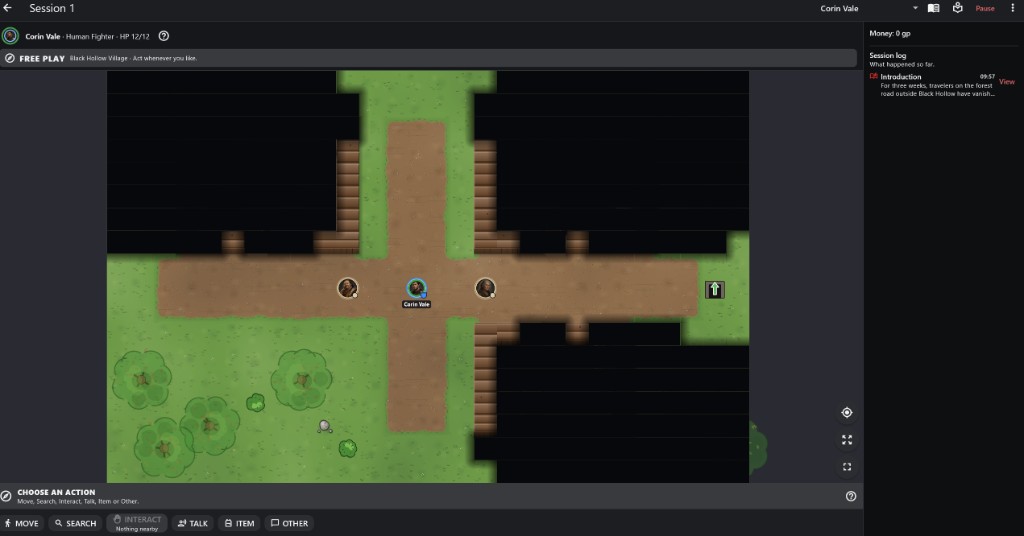
- 1Character and HP
- 2Free Play or Combat Where you are and whether you can act now.
- 3Your token Your name is under it; the dark areas are fog you haven't seen.
- 4Map controls Find me, whole map and Map Focus.
- 5Step bar and action buttons What to do next, then MOVE, SEARCH, INTERACT, TALK, ITEM or OTHER.
- 6Session log What happened so far, and your messages.
How to use it
- The top line shows your character, HP and whose turn it is.
- The bar above the buttons shows the step you are on and what to do next, such as CHOOSE AN ACTION.
- The action buttons are at the bottom. A greyed-out button says why it is unavailable.
- Your log and messages are on the right, or behind the sidebar button on smaller screens.
Step by step
- Read the introduction and tap Continue.
- Find your token: it carries your name.
- Pick an action at the bottom.
- Follow the step bar: preview, confirm, roll.
- In combat, tap END TURN when you are done.
Playing a Session For players
- FREE PLAY: act whenever you like. COMBAT: wait for YOUR TURN.
- In Free Play the buttons are MOVE, SEARCH, INTERACT, TALK, ITEM and OTHER; in combat ATTACK, PUSH and SPELL join them. DISARM TRAP and BROWSE STORE appear when something nearby allows it.
- Exits beside you appear under INTERACT. Using one asks the GM to move you; your map follows you there.
- A place without a map says "No tactical map is assigned to this location." Search, Interact and Other still go to the GM.
Understanding Player View For players
- The status always shows whose turn it is: YOUR TURN, another character's turn, WAITING FOR GM or FREE PLAY.
- Each token's ring shows its health; the creature acting has a gold ring.
- The round buttons on the map find your character, show the whole map, and turn on Map Focus, which hides the panels.
- On a phone, landscape gives the map more room.
Searching
- Tap SEARCH to see what nearby you can search: shelves, desks, chests and anything the GM marked Searchable.
- Too far away says "Move closer to search." Most things can only be searched once.
- Some searches need a roll, such as an Investigation check.
- What you find may be just for you; the others hear only that you found something.
Interacting
- Tap INTERACT to open or close doors, open chests and use objects within two squares.
- Locked things may need a key, a roll or a GM ruling.
Other Actions and Talking
- OTHER sends anything you want to try to the GM: climb, persuade, hide, improvise.
- In Free Play, TALK sends what your character says.
- The GM may accept, reject or ask you for a roll.
Waiting for the GM
- WAITING FOR GM means the GM is deciding an Other action or a ruling. There is nothing you need to do.
- WAITING FOR ANOTHER PLAYER means it is someone else's turn.
- SESSION PAUSED means the GM paused the game.
Important rules
- You control only your own character, unless the GM lends you another.
- Your view updates when a move is confirmed, never while you are only choosing a square.
Common questions
I can't find my character on the map.
Tap the target button in the map's corner.
Where did the GM's message go?
Into the Session log. Tap View to read it again.